Motion designers
You have a performance clip and want to test a new character, costume, or visual world.
Start with ai motion sync free when preserving the timing of a reference performance matters most.
ai motion sync freeSource transformation
Video to video ai helps you transform existing footage instead of starting from a blank prompt. Bring a reference clip, describe the intended change, and use the result as a focused creative starting point.
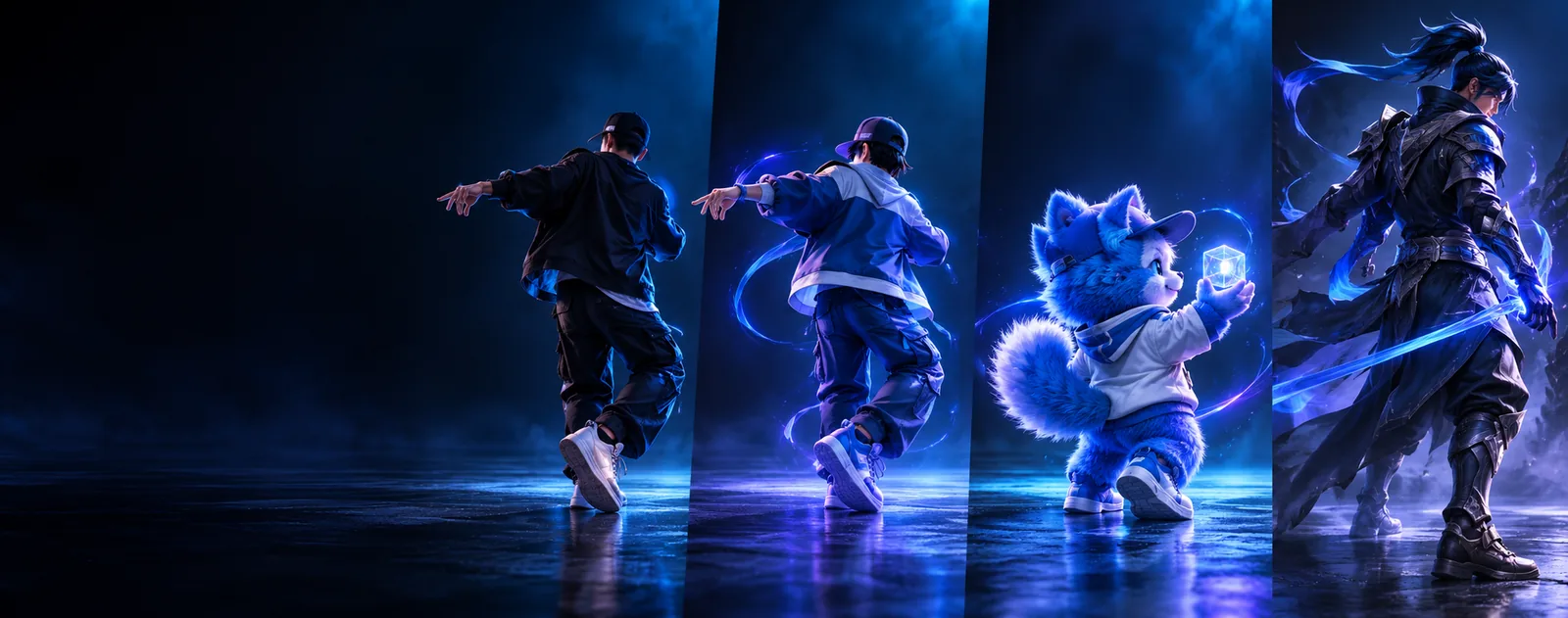
Visual comparison
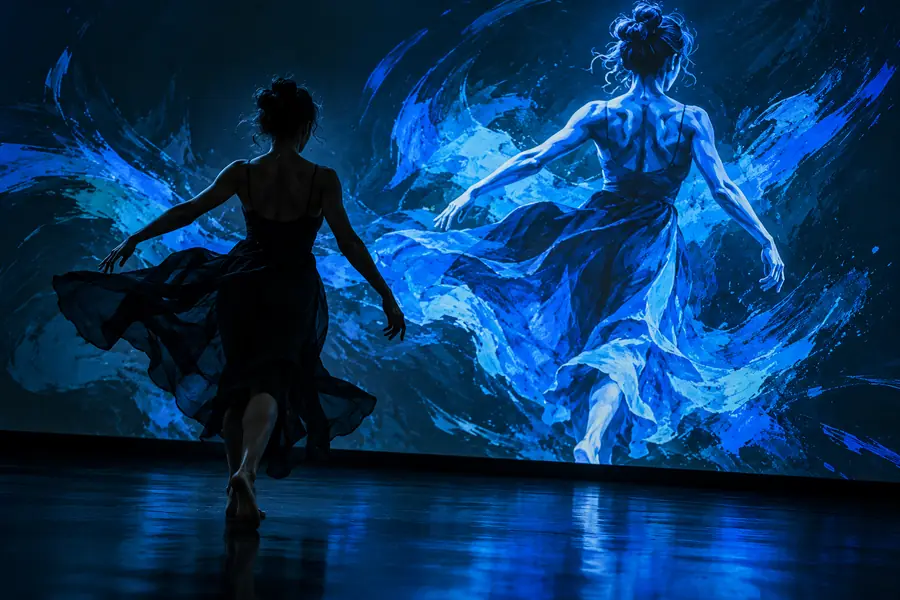
A source clip gives the transformation a visual anchor. The comparison below represents the goal: preserve the useful action while changing the surrounding look.
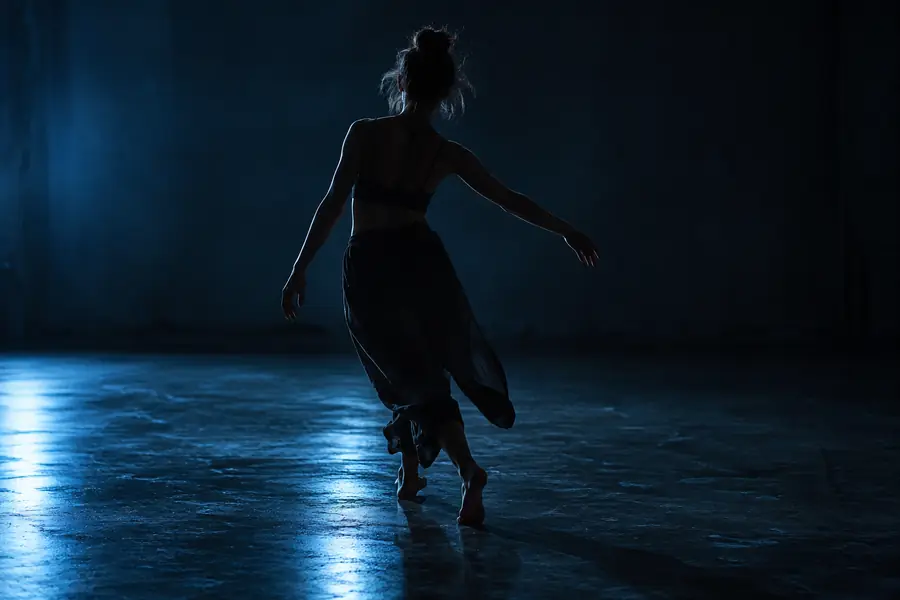
 Source clip
Converted result
Source clip
Converted result
Drag the divider to inspect motion and composition changes.
Source clipConverted resultAudience guide
Choose the adjacent workflow that matches your starting material and the kind of control you need.
You have a performance clip and want to test a new character, costume, or visual world.
Start with ai motion sync free when preserving the timing of a reference performance matters most.
ai motion sync freeYou want to transfer expressive gestures from one performer or animation into another visual subject.
Use ai motion mimic free as a focused path for gesture-led experiments.
ai motion mimic freeYou need several directions from one existing clip before choosing a final treatment.
An ai video generator can help broaden the concept set around your source footage.
ai video generatorYou have a written treatment but no usable reference footage yet.
Begin with text to video ai when the input is an idea rather than a clip.
text to video aiYour strongest reference is a still frame, poster, or product image.
Choose image to video ai to build movement from a visual starting point.
image to video aiThe visual footage is ready, but the mouth movement needs to follow a new speech track.
Use lip sync ai when speech alignment is the main change.
lip sync aiTool overview
A useful source-to-output workflow separates what you provide from what you should inspect in the returned clip.
Primary role
Source video
Provides motion, framing, timing, and visual reference
Converted video
Presents a changed subject, style, or scene treatment
Starting material
Source video
An existing video clip with visible action
Converted video
A generated or transformed interpretation of that clip
Main control
Source video
Choose footage that clearly shows the intended movement
Converted video
Describe the change while naming what should remain stable
Quality check
Source video
Look for blur, occlusion, and inconsistent lighting
Converted video
Check identity, motion continuity, edges, and scene coherence
Best use
Source video
Reference-led experiments and controlled variations
Converted video
Concept review, style exploration, and iteration
Publishing status
Source video
Your original working asset
Converted video
A draft that should be reviewed before delivery
Honest constraints
Most weak results begin with an unsuitable source rather than an unclear creative idea. Fix the input before changing the prompt.
Low contrast, heavy compression, and motion blur make the subject difficult to track across frames.
Workaround
Use a brighter, cleaner export with the subject separated from the background.
A performer or object that disappears repeatedly gives the conversion less visual information to follow.
Workaround
Trim to the clearest movement and keep the important action inside the frame.
Crowded scenes can make it unclear which person or object should drive the transformation.
Workaround
Choose a clip with one dominant subject or state the target subject precisely.
A prompt cannot reliably preserve a detail that the source never shows, such as a hidden face or unseen body pose.
Workaround
Use a better reference clip or reduce the request to visible, trackable changes.
Example outputs
These examples show the kind of input-led experimentation this workflow supports. Treat each output as a draft for review, not a guaranteed final shot.
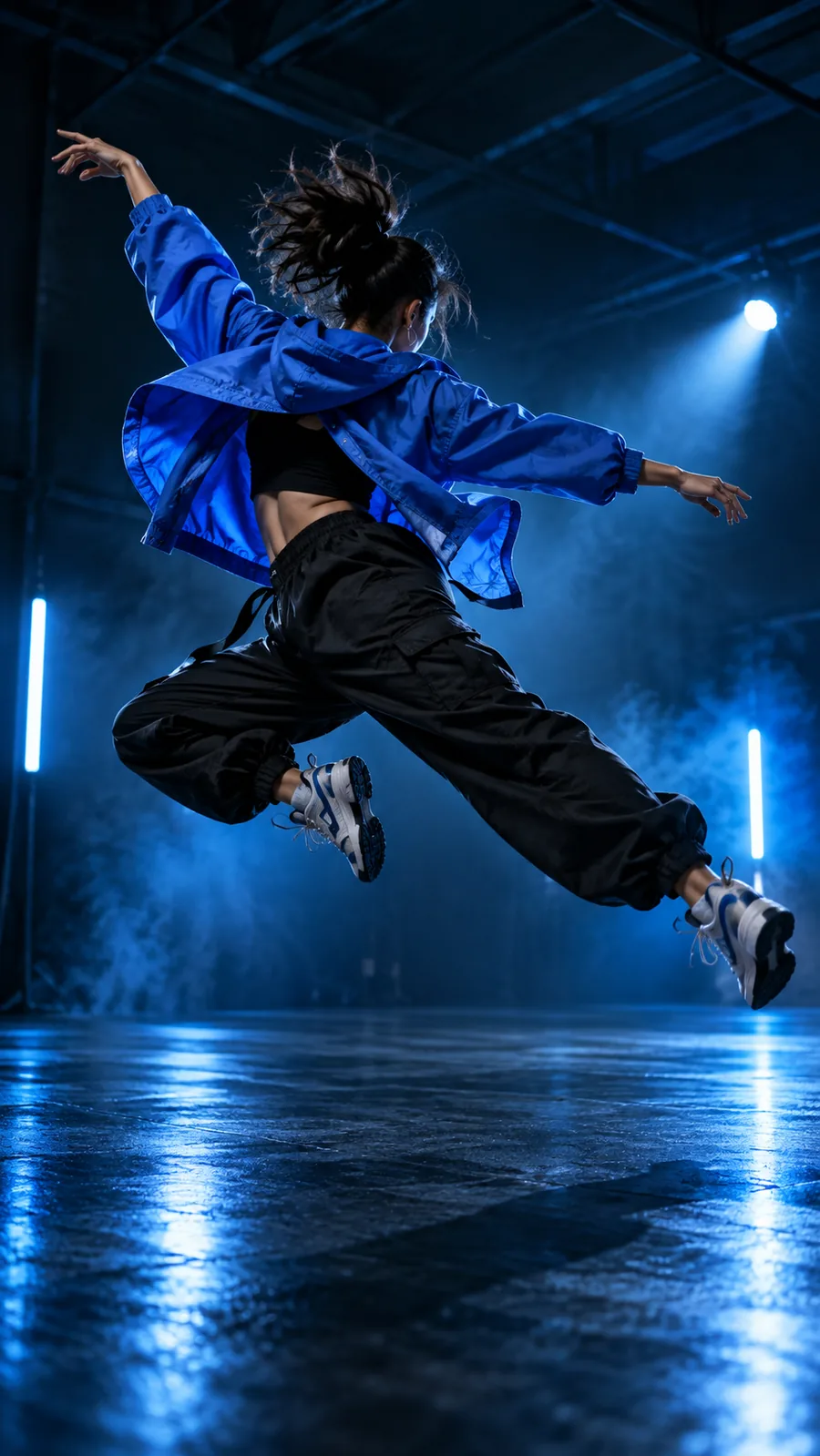 Style shift
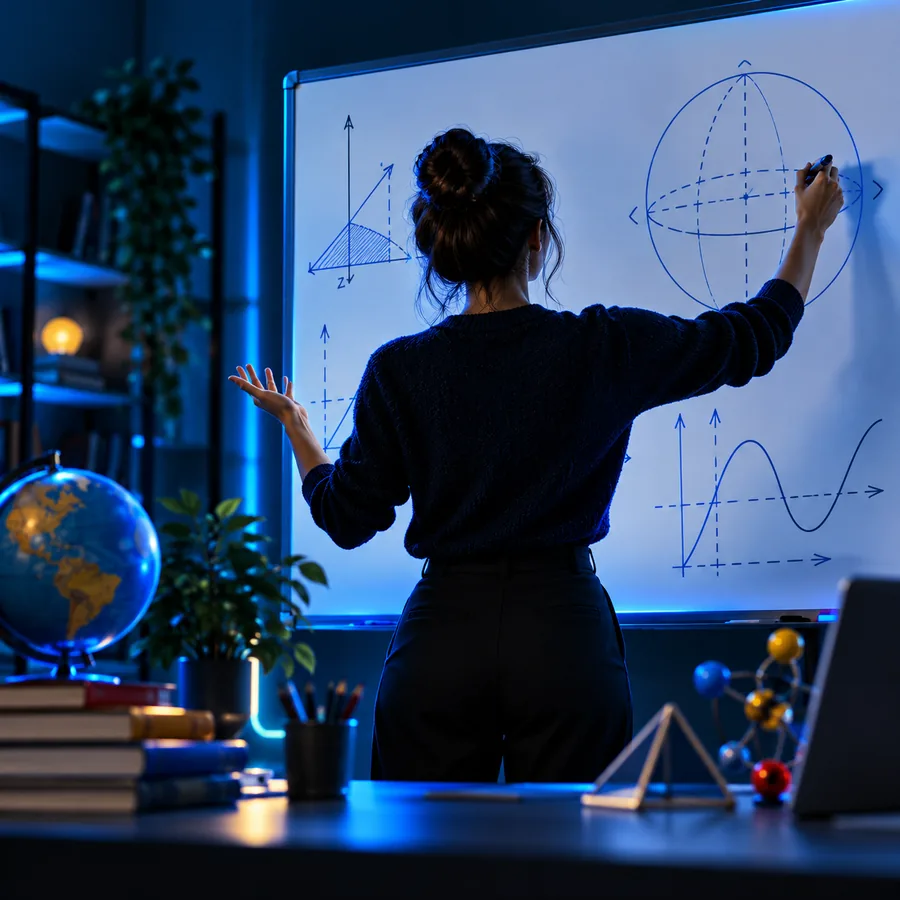 Character pass
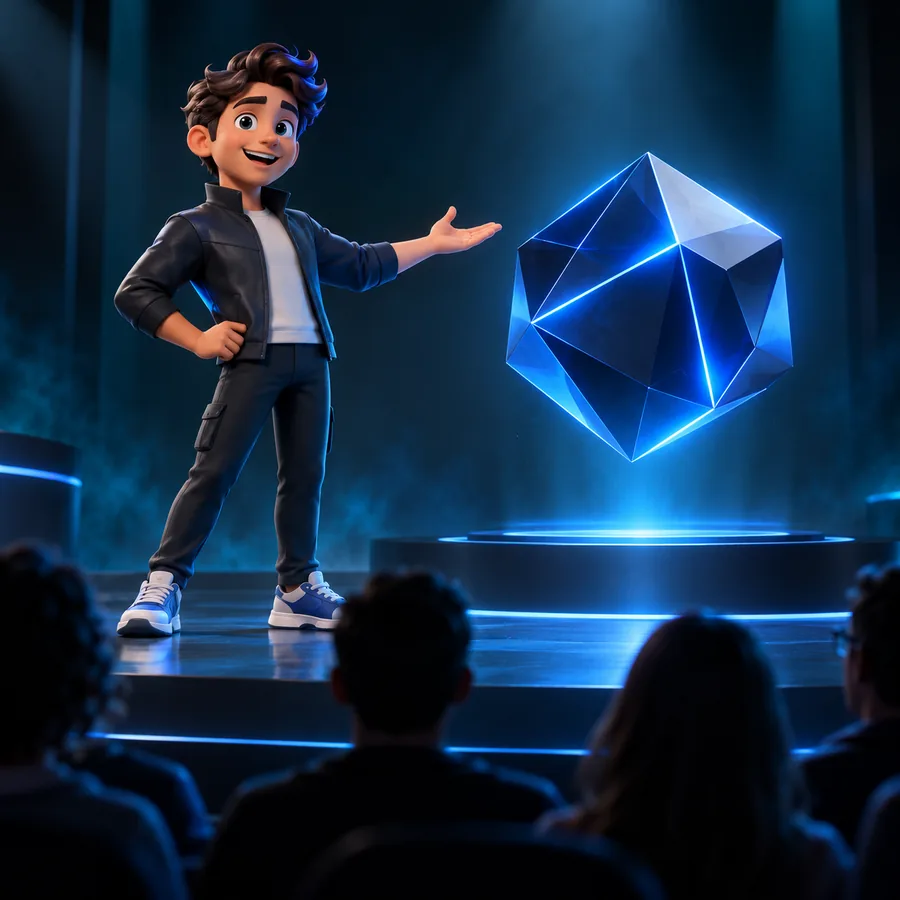 Scene variation
Import workflow
Keep the first pass simple: establish a readable reference, describe one primary change, then inspect the output against the original.
Import footage with visible subject movement, stable framing, and enough light to show the action.
Name the desired visual change and identify the motion, subject, or composition that should stay consistent.
Review continuity, subject identity, edges, and distracting artifacts before using the result in a larger edit.
Start your draft
A focused source and a specific change are enough to begin exploring a new direction. Send your idea to the creative tool, then judge the returned footage against the original reference.
Convert a videoVariant FAQ
It transforms an existing video into a new visual interpretation while using the source as a reference. Common uses include style exploration, character variations, scene changes, and early concept development.
Choose footage with clear lighting, a visible main subject, and movement that stays inside the frame. Shorter clips with one dominant action are usually easier to inspect and refine than crowded or heavily compressed footage.
The source motion can guide the transformation, but continuity is not guaranteed in every frame. Check timing, limbs, facial details, edges, and subject identity before treating the output as production-ready.
Common causes include blur, low contrast, occlusion, multiple competing subjects, or a request that asks for details the source never shows. Improving the clip and narrowing the requested change often gives you a clearer next pass.