Storyboard artist
You have a drawn frame but need to explore a scene that has not been filmed.
Compare that approach with ai video generator when a fixed source image is not essential.
ai video generatorFrom frame to motion
A single picture gives a clip its subject and composition, but it cannot specify every movement. Start with a clear image and describe the motion you want to see.
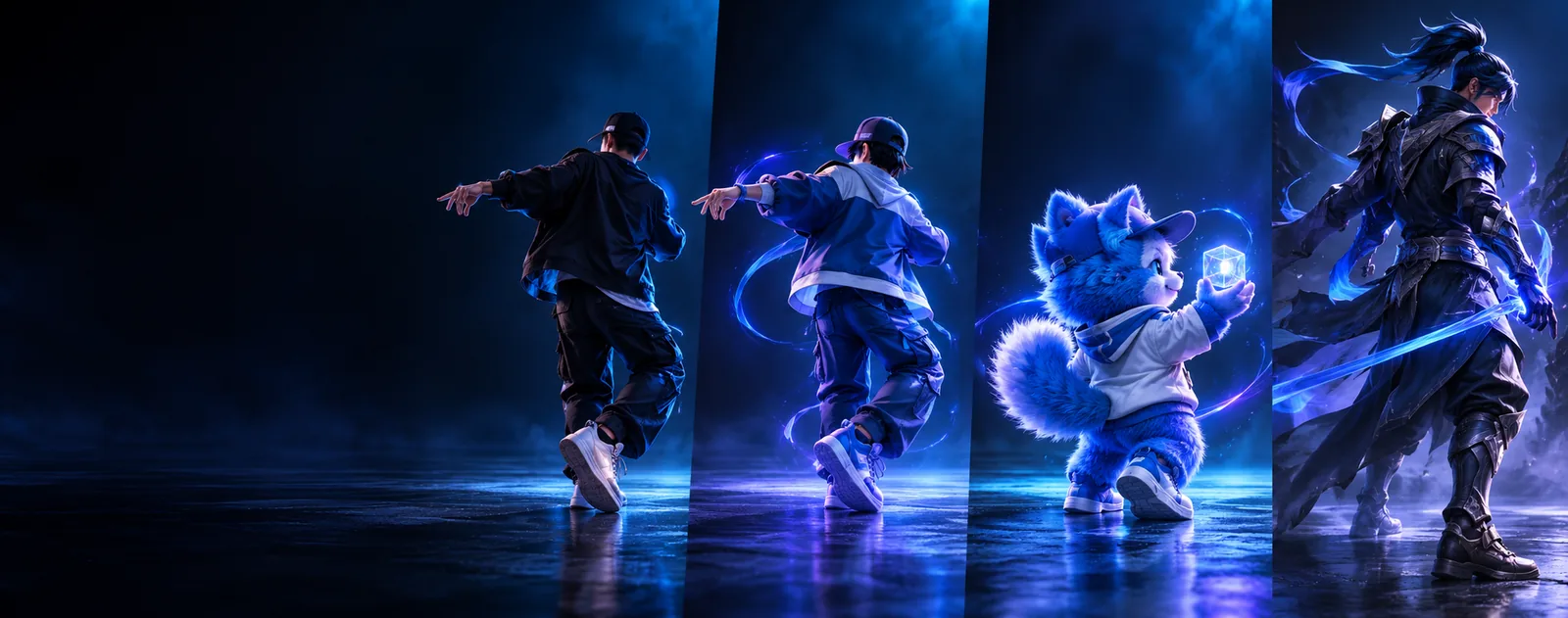
A still is useful when the scene's appearance matters most. These related workflows address different starting material or a different kind of motion.
You have a drawn frame but need to explore a scene that has not been filmed.
Compare that approach with ai video generator when a fixed source image is not essential.
ai video generatorYou can describe a scene but have no picture to anchor its look.
Use text to video ai to explore a prompt-led starting point instead.
text to video aiYou already have footage and want to change its appearance.
Consider video to video ai when existing timing and action matter.
video to video aiYou have a reference movement you want a character to follow.
Explore ai motion mimic free for a motion-reference workflow rather than inventing movement from one frame.
ai motion mimic freeMatching gestures to a separate reference is more important than animating a particular photo.
Review ai motion sync free for questions about aligning movement across sources.
ai motion sync freeThe intended change is mouth movement tied to speech.
Look at lip sync ai for that narrower task instead of treating a whole scene as the problem.
lip sync aiA picture defines what one instant looks like. A clip must also account for what happens between instants.
Time
Still image input
One captured moment
Moving video output
A sequence of moments
Subject pose
Still image input
One visible pose
Moving video output
Changing poses that should remain recognizable
Camera
Still image input
A fixed viewpoint
Moving video output
A viewpoint that may move or stay still
Hidden surfaces
Still image input
Not shown in the frame
Moving video output
May need to appear as objects or camera move
Lighting
Still image input
Visible at one instant
Moving video output
Needs to remain coherent as the scene changes
Review
Still image input
Inspect composition and detail
Moving video output
Inspect continuity, timing and individual frames
Moving beyond one frame introduces uncertainty. Watch for altered details, shifting proportions and newly visible areas that the original picture never defined.
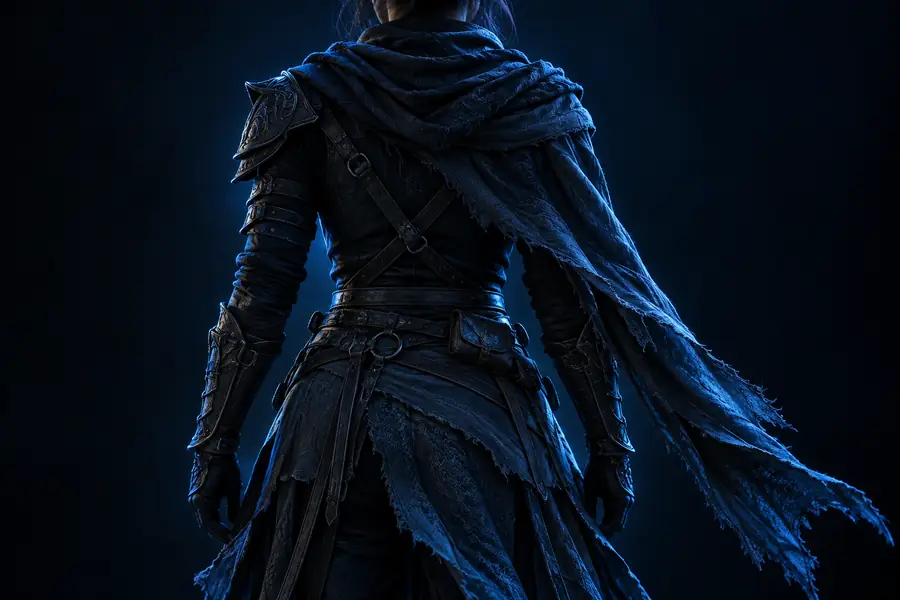
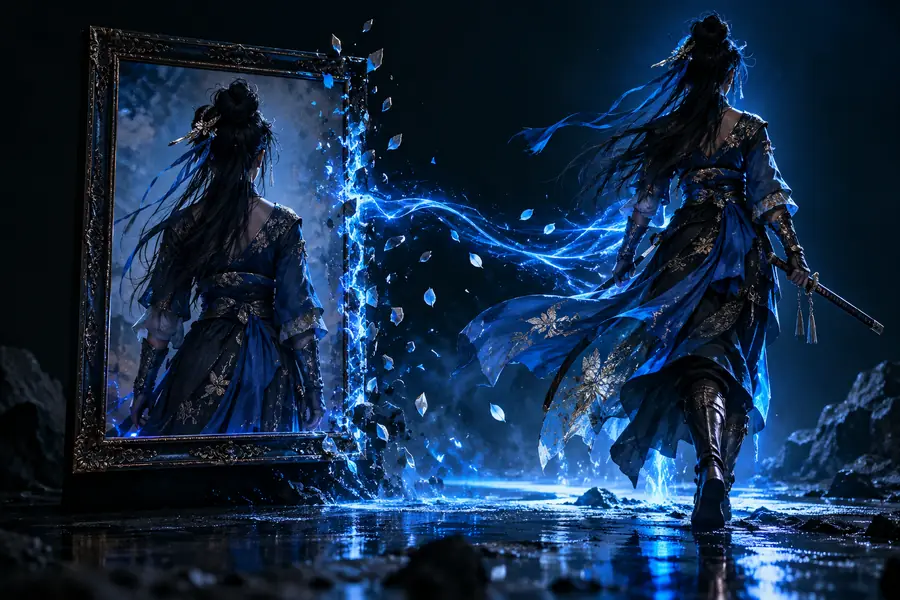 Still reference
Comparison view
Still reference
Comparison view
These are separate illustrative images, not matched frames or proof of a generated before-and-after result. Use the divider to practice checking details; verify changes against your own source and clip.
Still referenceComparison viewTreat image to video ai as an iteration workflow, not a guarantee that a still contains enough information to determine the finished action.
Pick an image with a distinct subject and a composition you want to preserve. Check that small features important to the shot are visible.
State what moves, what stays fixed and how the camera behaves. A short, specific request is easier to assess than several competing actions.
If the chosen tool accepts your image, compare its output with the source. Revise the motion request when identity, edges or background objects drift.
Play the result, then pause at several points. A convincing first frame does not establish that the rest of the clip holds together.
One picture does not document the back of a subject or objects outside its frame.
Workaround
Avoid camera moves that reveal unknown areas, or provide additional references if the tool supports them.
Faces, lettering and fine patterns can change across frames even when the opening image looks right.
Workaround
Check paused frames as well as playback; simplify the requested movement if key details shift.
Hands, reflections and object contact may appear plausible briefly but fail under closer inspection.
Workaround
Review the action at normal speed and frame by frame before using the clip.
Bring a clear source image and a focused movement description to the linked creation tool. Check its available image-input options before proceeding, then review any result for continuity rather than judging only the opening frame.
Explore video creationName the subject's intended movement and say whether the camera moves. Identify anything that must remain stable, such as framing or lighting, instead of describing an unrelated new scene.
No. A still does not show how the subject moves or what hidden surfaces look like. The resulting frames need to be reviewed rather than assumed to match a specific unseen action.
Movement requires new views and poses that are absent from the source. Compare the clip with the picture for changes in identity, patterns, background objects and lighting.
Start with a photo when its appearance and composition are the main reference. If the timing and action of an existing clip must carry through, a video-based workflow is a better question to investigate.